

Organic traffic in Google Analytics represents visitors who arrive at your website directly from unpaid search engine results pages. Unlike paid search traffic from Google Ads, organic traffic costs zero dollars per click and reflects how effectively your content satisfies user intent across search engines like Google, Bing, and DuckDuckGo.
Understanding your organic traffic in Google Analytics is the single best way to evaluate whether your search engine optimization (SEO) efforts are actually working. As of September 2026, Google Analytics 4 (GA4) serves as the primary analytics tool for businesses tracking website performance, though navigating its event-based reporting interface presents a learning curve for business owners used to older platforms.
If you want to track your search engine performance alongside automated content creation, tools like PulseRank offer built-in Google Search Console reporting to show what your published articles rank for without forcing you to dig through complex analytics setups.
How to check organic traffic in the GA4 Acquisition report?
To check your organic traffic in the GA4 Acquisition report, navigate to Reports > Acquisition > Traffic acquisition, then examine the row labeled "Organic Search" under the Session default channel grouping column. This report isolate search engine visitors from social, direct, and paid campaigns so you can monitor your growth over custom date ranges.
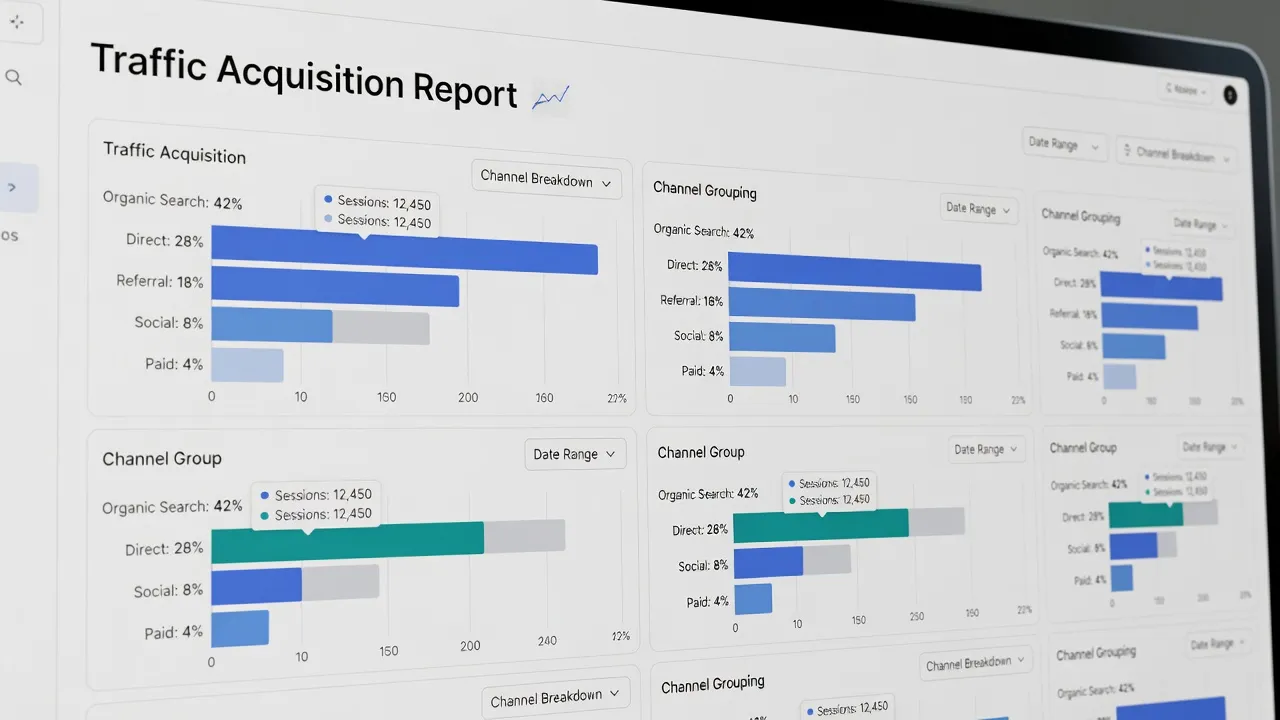
The Traffic acquisition report breaks down user activity by session-level dimensions. Here is the exact path to locate and customize this view:
- Log into your Google Analytics 4 property and click Reports in the left navigation menu.
- Expand the Acquisition section and select Traffic acquisition.
- Locate the primary dimension column, which defaults to Session default channel grouping.
- Look for the Organic Search row in the data table below the timeline graph.
- Optional: Click the + icon next to the primary dimension header and select Session source / medium to see specific search engines like
google / organicorbing / organic.
According to Google's official GA4 documentation, channel rules automatically classify traffic based on source and medium definitions. If a session medium matches organic, GA4 automatically groups that traffic into the "Organic Search" bucket.
How to see organic traffic in real time in GA4?
You can see organic traffic in real time in GA4 by opening the Realtime report from the left sidebar and viewing the "Users by First user default channel grouping" or "Users by Source" cards. This report shows user interactions on your site over the past 30 minutes.
The Realtime report updates instantly, making it ideal for verifying new campaigns or checking immediate responses to published content. To view current organic search traffic:
- Click on Reports in the left menu.
- Select Realtime at the top of the report list.
- Scroll down to the card titled Users by First user default channel grouping.
- Look for the bar labeled Organic Search to see how many active users came from unpaid search.
Real-time data helps you confirm that search engines are indexing and driving traffic to freshly published pages. However, real-time numbers fluctuate constantly and should not replace historic reporting when making strategic decisions.
How to filter the GA4 real-time report by 'Default channel grouping: Organic Search'?
To filter the GA4 real-time report by organic traffic, click the "Add comparison" button at the top of the Realtime report and set the dimension to "First user default channel grouping" with the value "Organic Search". Applying this filter removes all other traffic sources from the real-time cards, isolating your active organic search visitors.
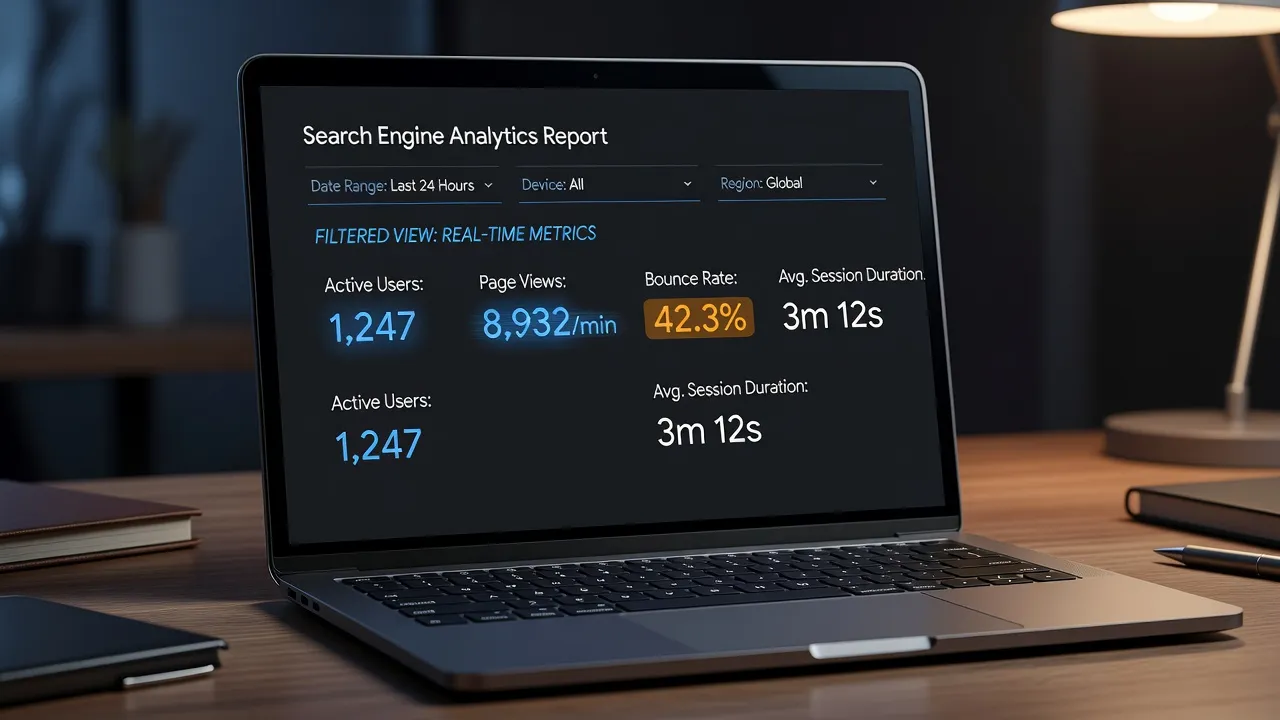
Here are the step-by-step instructions to configure this comparison filter:
- Open the Realtime report inside GA4.
- Click Add comparison (the icon near the top of the page under the report title).
- In the right-hand panel, select the dimension First user default channel grouping (or Session default channel grouping).
- Set the match type to exactly matches and choose Organic Search from the value dropdown.
- Click Apply at the bottom of the panel.
Once applied, the blue and orange lines on your cards will compare your total site traffic against your filtered organic traffic. You can also edit the main view by removing the "All Users" condition to focus exclusively on search visitors.
How to check organic traffic in real time in Universal Analytics?
You cannot check organic traffic in Universal Analytics because Google completely sunset Universal Analytics properties and turned off data processing. Google officially retired Universal Analytics (UA) in July 2023, and historic UA data access ended entirely in 2024.
If you are trying to check real-time organic traffic today, you must use GA4 or a third-party analytics dashboard integrated with your site. Businesses that previously relied on UA's realtime.html views have fully transitioned to GA4's event-based tracking framework.
For companies looking to simplify their metrics, understanding the difference between tools is essential. You can read our detailed breakdown on Google Search Console vs Google Analytics to learn how each platform handles organic data differently.
What does organic traffic mean in Google Analytics vs other channels?
In Google Analytics, organic traffic specifically refers to visitors who arrived via non-paid search results, separating them from direct visits, referral links, email clicks, and paid ads. Search engine algorithms determine organic rankings based on content relevance and authority, whereas other channels rely on direct URL entries, paid placement, or third-party links.
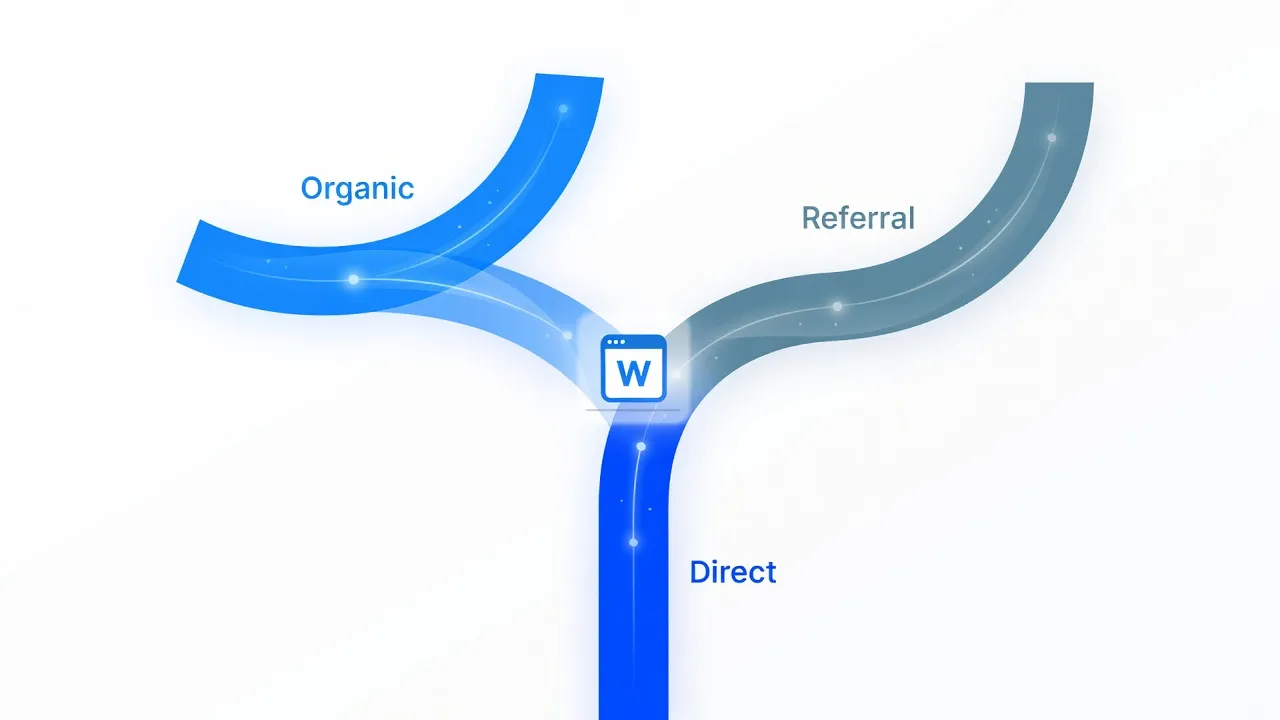
Understanding these distinctions prevents misinterpreting your traffic spikes. According to Wikipedia's definition of organic search, organic listings are generated purely by search engine relevance algorithms rather than commercial advertising arrangements.
Here is how organic traffic compares to alternative channels in GA4:
- Organic Search: Users clicking a regular result on Google, Bing, Yahoo, or DuckDuckGo.
- Direct Traffic: Users typing your web address directly into their browser address bar, clicking a browser bookmark, or clicking an untracked link in a private document or messaging app. To understand this deeper, check out our guide on direct vs organic traffic.
- Referral Traffic: Users clicking a link to your site found on an external website (excluding major search engines and social media networks).
- Organic Social: Visitors arriving from non-paid links on social platforms like LinkedIn, X (Twitter), Facebook, or Reddit.
- Paid Search: Visitors who clicked an ad appearing at the top or bottom of a search engine results page (tagged with
cpcorppcmediums).
Key metrics to measure inside your organic search traffic
When analyzing your organic visitors in GA4, focus on these metrics to judge traffic quality:
- Sessions: The total number of visits originating from organic search.
- Engaged Sessions: Visits that lasted longer than 10 seconds, had 2 or more pageviews, or triggered a conversion event.
- Engagement Rate: The percentage of total organic sessions that turned into engaged sessions.
- Key Events (Conversions): Specific user actions (like form submissions or purchases) completed by organic visitors.
How Google Analytics attributes search engine sessions
Google Analytics identifies organic traffic by inspecting the HTTP referrer header and URL parameters attached to every incoming visitor session. If the referrer matches a known search engine domain (such as google.com) and contains no paid advertising parameters (like gclid), GA4 tags the session medium as organic.
Search traffic attribution relies on specific technical indicators:
- The Referrer Header: When a user clicks a link on Google, their web browser passes
google.comas the referring URL to your web server. - Absence of Ad Tags: GA4 checks if the landing page URL contains parameters like
gclid(Google Click Identifier) orutm_medium=cpc. If present, it attributes the visit to Paid Search instead. - Custom UTM Overrides: If you manually add custom UTM codes to organic links (for example, in a profile link), setting
utm_medium=organicforces GA4 to categorize the visit as organic traffic.
If a browser strips the referrer header due to strict privacy settings or HTTPS-to-HTTP protocol downgrades, GA4 cannot identify the search engine. In those scenarios, the visit defaults to Direct traffic.
Comparing organic traffic tracking tools for business growth
The variable that determines which tracking setup you need is whether you want raw site analytics, search engine index data, or complete content execution paired with performance reporting. While Google Analytics tracks what users do after arriving on your site, it does not reveal your search engine impressions, missing keywords, or automated optimization opportunities.
Comparing your tracking options helps you select the right tool stack for your business goals.
| Feature / Capability | Google Analytics 4 (GA4) | Google Search Console (GSC) | PulseRank |
|---|---|---|---|
| Primary Data Focus | On-site user behavior, event tracking, and conversions. | Search engine impressions, clicks, average position, and indexing. | End-to-end organic strategy, automated publishing, and ranking visibility. |
| Organic Setup Difficulty | High (requires event tagging, custom dimensions, and navigation). | Medium (requires DNS or HTML tag verification). | Low (connects directly to your CMS and Search Console). |
| Integrated Content Creation | None (analytics tracking tool only). | None (search diagnostic tool only). | Includes 30 citation-ready articles generated and published per month. |
| Reporting Interface | Detailed session reports, custom exploration canvases. | Queries, impressions, CTR, and indexing status reports. | Unified GSC performance reporting alongside AI citation tracking. |
| Pricing Model | Free (Standard tier). | Free. | $499/month flat plan with all features included. |
Google Analytics provides incredible depth for web analysts, but smaller teams often struggle to convert raw traffic graphs into actionable business growth. If you want to expand your traffic reach systematically, explore our strategy on organic traffic generation.
How to diagnose a sudden drop in organic traffic in GA4
To diagnose an organic traffic drop in GA4, compare your current traffic window against the preceding period, then segment the data by Landing Page to isolate which specific pages lost traffic. Isolating specific pages tells you whether the issue stems from a site-wide technical failure or an algorithm update affecting specific topics.
Follow this step-by-step diagnostic workflow:
1. Adjust your date comparison range
Open your Traffic acquisition report in GA4. Set the date picker to compare the recent drop period against the previous 30 days or the same period last year. Look closely at the percentage change in organic search sessions.
2. Isolate landing pages
Change your table dimension to Landing page + query string. Sort the table by absolute session drop (descending). This highlights whether the drop hit every page equally or affected just two or three top-performing blog posts.
3. Cross-reference with Google Search Console
According to Google Search Central guidance, site updates, broken redirects, or crawling errors often cause sudden drops. Check GSC's Performance report to confirm whether impressions dropped alongside clicks. If impressions dropped, search engines are serving your links less frequently.
How PulseRank turns organic traffic reporting into automated growth
PulseRank streamlines organic growth by running your entire organic content operation—from keyword research to publishing and analytics tracking—in a single platform. Instead of spending hours cross-referencing GA4 reports and brainstorming blog topics, business owners get an end-to-end organic engine.
At $499 per month, PulseRank builds a custom 30-day content strategy derived from your brand's core keywords. It writes and directly publishes 30 citation-ready articles every 30 days straight to your website on WordPress, Shopify, Wix, or Git repositories.
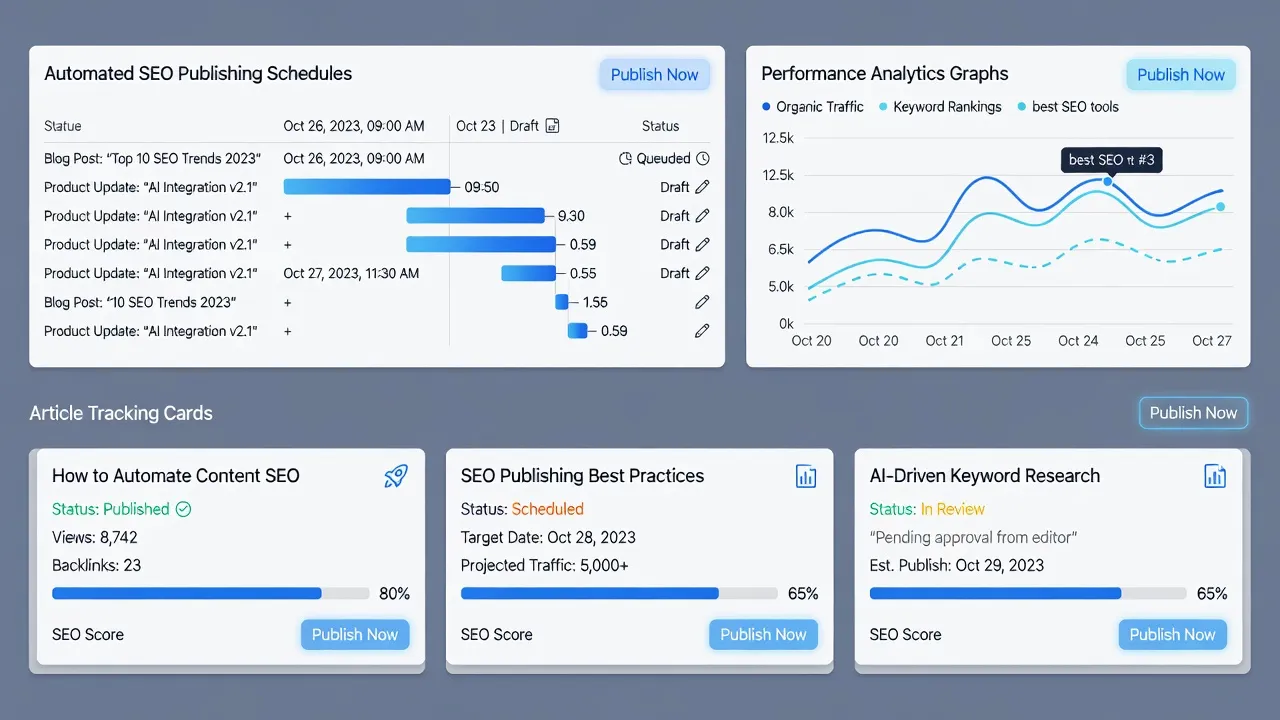
Key features included in the platform:
- Integrated Search Console Analytics: See what every published article ranks for and spot under-performing positions without digging through complex GA4 custom reports.
- AI Citation Tracking: Track whether AI answer engines (like ChatGPT, Perplexity, and Google SGE) are citing your brand content.
- Automated Article Generation: Every piece includes formatted data tables, sourced third-party links, generated images with alt text, and internal site links built in automatically.
- Flat-Rate Transparency: One flat $499/month plan covers research, writing, images, publishing, and performance reporting with a 7-day free trial.
Instead of staring at GA4 traffic reports wondering how to create more search visibility, PulseRank handles both the content execution and the rank reporting for you.
Frequently Asked Questions
What does organic traffic mean in Google Analytics?
Organic traffic in Google Analytics refers to site visitors who clicked on a non-paid search result on search engines such as Google, Bing, or Yahoo. It excludes visitors coming from paid ads, direct URL entries, social media posts, or referral links on other websites.
Why is my organic traffic showing up as direct traffic in GA4?
Organic traffic gets misclassified as direct traffic when browser privacy features or protocol mismatches strip the HTTP referrer information. Common causes include missing HTTPS certificates, untracked mobile app links, or strict privacy extensions used by visitors.
How do I find organic search keywords in Google Analytics 4?
GA4 hides most organic search keywords under the label (not provided) due to privacy protections. To see real organic keywords driving traffic, you must link your Google Search Console account to your GA4 property and view the Search Console reports section.
What is the difference between organic search and organic social in GA4?
Organic search refers to visitors who found your site through a search engine results page. Organic social refers to visitors who clicked on a free, non-paid link within a social media platform like LinkedIn, Reddit, Facebook, or X.
How often does Google Analytics update organic traffic data?
Standard GA4 reports process data within 24 to 48 hours, meaning full yesterday metrics may lag slightly. However, the Realtime report updates instantly, tracking user sessions over the immediate 30-minute window.
Can I track conversions specifically for organic search traffic?
Yes, you can track organic conversions in GA4 by applying a filter or secondary dimension for "Session default channel grouping = Organic Search" within your Key Events (Conversions) report. This shows how many leads or sales came directly from search engines.