
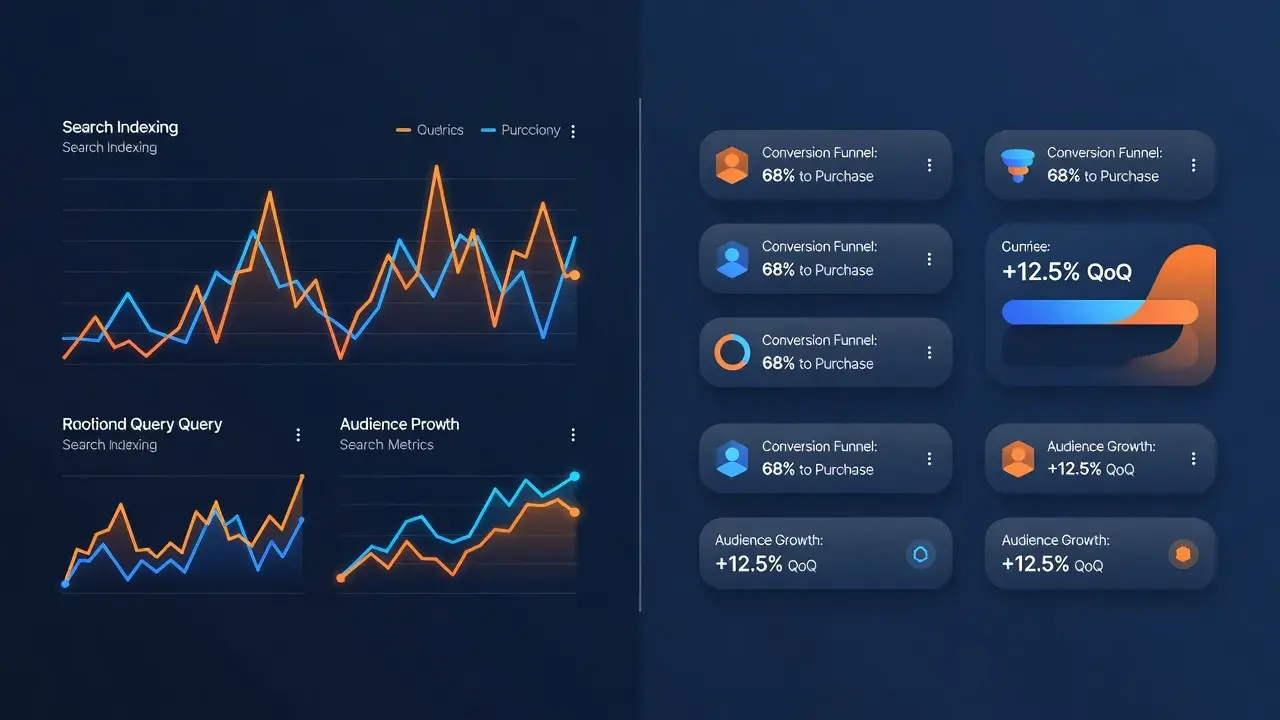
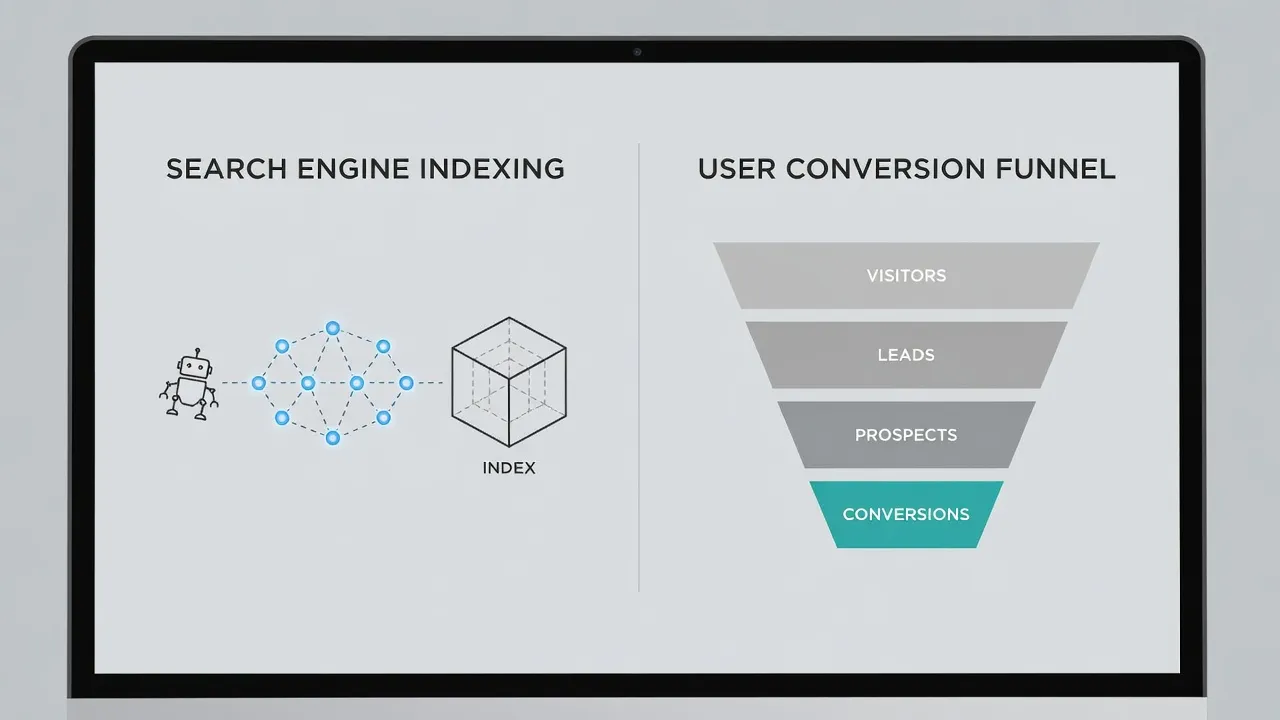
Google Search Console tracks how search engines crawl, index, and rank your website in search results, whereas Google Analytics measures what human visitors do after they land on your pages. Search Console evaluates pre-click technical performance and organic visibility, while Google Analytics (GA4) measures post-click user behavior, conversions, and revenue across all acquisition channels.
Understanding the boundary between these two free services is essential for any business growing its online presence. Using only Google Analytics leaves you blind to indexing errors and impression drops, while relying solely on Search Console hides whether your organic visitors convert into paying customers.
As of August 2026, recent updates to search algorithms and generative search experiences have altered how both platforms report traffic. Search Console now filters an increasing number of rare queries for privacy, and GA4 relies heavily on event-based data modeling that can confuse teams accustomed to traditional session metrics.
What is the main difference between Google Search Console and Google Analytics?
The main difference is that Google Search Console measures search engine engine interactions with your site, while Google Analytics measures human user interactions on your site. Search Console answers questions about technical health, search rankings, impressions, and indexation. Google Analytics answers questions about page views, session duration, user demographics, custom event triggers, and sales conversions.
Search Console sits entirely on the search engine side of the digital marketing funnel. It tells you which queries brought up your URL in Google Search, your average ranking position, and how many times users clicked your link. It also alerts you to technical flaws like missing schema tags, mobile usability errors, or crawling blocks caused by your robots.txt file.
Google Analytics 4 operates on the client side using javascript tags. It tracks visitors coming from all channels including paid ads, referral links, email campaigns, direct typing, and social media. Once a visitor lands on your page, GA4 tracks their movement across your conversion funnel regardless of where they came from.
If you want to simplify how you monitor search rankings alongside your site's content production, all-in-one platforms like PulseRank pull Search Console performance metrics into an integrated content engine so you do not have to manually reconcile indexing logs with editorial calendars.
Side-by-side comparison: Google Search Console vs Google Analytics vs PulseRank
Choosing the right analytics workflow depends on whether your daily focus is fixing technical indexing issues, monitoring traffic conversions, or managing an end-to-end publishing pipeline.
| Platform | Primary Purpose | Core Metrics Tracked | Data Source | Key Advantage | Limitation |
|---|---|---|---|---|---|
| PulseRank | Automated organic content strategy & execution | Organic impressions, position tracking, AI answer citations, published post performance | Google Search Console API & generative engine monitoring | Removes manual keyword research and article drafting by publishing directly to your CMS with built-in rank reporting | Flat $499/month price tag requires active content output strategy |
| Google Search Console | Technical SEO and search engine visibility | Impressions, clicks, average position, click-through rate (CTR), indexation status | Google Search engine backend logs | Shows exact search queries and technical indexing flaws for free | Only tracks search traffic from Google; retains data for only 16 months |
| Google Analytics 4 | Multichannel user behavior and conversion tracking | Engaged sessions, event counts, conversion paths, user retention, ecommerce revenue | Browser JavaScript code executed by visitors | Tracks visitor actions across all channels including social, paid, and direct | Organic search queries are masked as "(not provided)" due to privacy rules |
| Third-Party SEO Tools | Competitive analysis and keyword research | Keyword difficulty, backlink profiles, competitor traffic estimates, SERP feature positions | Proprietary web scrapers and panel data | Provides competitor insights not visible inside Google's native dashboards | Relies on estimated third-party data rather than actual server logs |
What metrics does Google Search Console measure?
Google Search Console measures search visibility metrics including organic impressions, clicks, click-through rate, average ranking position, and technical indexation status. It provides explicit server-side data directly from Google's search index.
According to official Google Search Console Help documentation, Search Console retains performance data for up to 16 months in its native interface. This makes year-over-year comparative reporting straightforward without requiring immediate cloud data warehouse exports.
Search Query Entered -> Google Displays SERP -> [Impression Captured] -> User Clicks Result -> [Click Captured] -> Visitor Reaches Site
What is impression data in Google Search Console?
An impression is counted whenever your site's URL appears in a search result page viewed by a user. The user does not need to scroll down far enough to see your specific listing for an impression to register on standard pagination, though infinite scroll SERPs count impressions when the link loads in the viewable viewport.
Impression spikes without matching click growth usually indicate your site ranks for high-volume keywords on page two or three of Google, or that your title tags lack compelling calls to action.
How accurate is click data in Search Console?
Click data in Search Console is highly accurate for Google Search traffic, but it filters out bot traffic and anonymized long-tail searches. Search Console counts a click when a user selects a link that takes them outside of Google Search to your web page.
If a user clicks a result, returns to the search page, and clicks the link again immediately, Search Console generally counts that activity as a single click.
Search Console Focus: [Ranking Position] -> [Impressions] -> [Clicks]
What metrics does Google Analytics 4 measure?
Google Analytics 4 measures user engagement, event triggers, session metrics, traffic source channels, and conversion paths across your entire site. Unlike older session-based analytics models, GA4 measures every user action as an event.
As detailed in the Google Analytics 4 documentation, GA4 relies on an event-driven framework where pageviews, scrolls, button clicks, and purchases share a unified measurement structure.
How does GA4 define engaged sessions?
GA4 defines an engaged session as any site visit that lasts longer than 10 seconds, triggers a conversion event, or views two or more pages. This metric replaced the traditional "Bounce Rate" metric from Universal Analytics, providing a clearer view of whether landing page visitors consume your content.
If a customer lands on a blog post, reads for two minutes, and leaves without clicking another page, GA4 counts that visit as an engaged session rather than a bounce.
Can Google Analytics show organic search keywords?
No, Google Analytics cannot show the specific organic search terms individual users typed into Google. Over 95% of organic keyword traffic inside GA4 appears grouped under the placeholder phrase "(not provided)" to protect user privacy.
To understand which terms drive search engine traffic, you must rely on Google Search Console data or connect GSC to your GA4 property to view queries inside linked reports.
How do Search Console and Google Analytics handle privacy and data sampling?
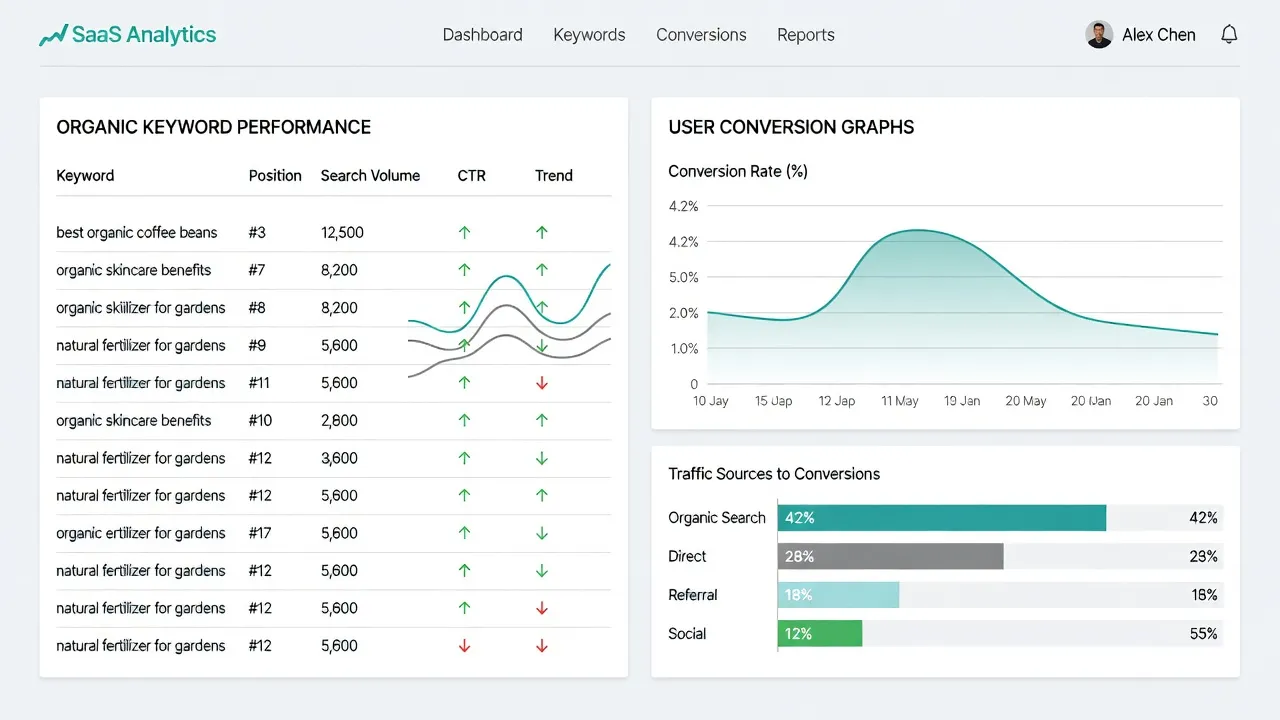
Search Console protects user privacy by hiding rare search queries, while Google Analytics protects performance by sampling large datasets and estimating user paths. Neither tool provides complete, unedited log files for every single site visit.
As explained in the Google Search Central Blog, Google anonymizes search queries that contain personal identifying information or those typed by very few users. These are omitted from Search Console query reports to prevent site owners from identifying individual searchers. This privacy threshold means the sum of your specific search queries will rarely match your total click total in Search Console.
Google Analytics 4 handles large datasets differently. When custom reports exceed standard data limits, GA4 applies data sampling or data thresholding. If Google signals detect that a report might reveal user identity, entire rows of demographic or interest data are hidden from your view.
Should you connect Google Search Console to Google Analytics 4?
Yes, you should connect Google Search Console to Google Analytics 4 to view search keywords and landing page performance in a single reporting view. Connecting the two accounts does not merge their underlying data structures, but it unlocks dedicated GSC cards inside your GA4 library.
When you link these services, you gain access to two specialized reports inside GA4:
- Google Organic Search Queries: Displays your GSC clicks, impressions, CTR, and average position alongside actual query terms.
- Google Organic Search Traffic: Shows landing page performance mapped against the acquisition medium.
Connecting these services requires Editor permissions on your GA4 property and Verified Owner status on your Search Console property. Once linked, you can publish the Search Console reports directly into your main GA4 navigation menu.
How to streamline your search performance data without manual reporting
While connecting GSC to GA4 helps cross-reference data, business owners often spend hours hopping between dashboards to identify which published pages are falling in rank and which need fresh content updates.
If you want to skip manual dashboard management entirely, PulseRank automates your organic growth strategy. The platform integrates native Google Search Console reporting directly alongside its content creation features.
Instead of toggling between GA4, GSC, and separate AI writers, PulseRank runs your entire content engine for a single flat fee:
- Unified GSC Reporting: Track position shifts and identifies underperforming URLs automatically.
- Generative Engine Tracking: Monitor your brand visibility across AI answer engines alongside standard Google rankings.
- Automated Content Operations: Generates complete, citation-ready articles complete with data tables, sourced references, inline imagery, and internal links published straight to your CMS.
For teams looking to refine their execution, exploring structured approaches like a proven content strategy helps align technical keyword data with revenue targets. Connecting your GSC account to automated workflow tools ensures you spend less time copying numbers into spreadsheets and more time scaling your traffic.
Manual Approach:   Export GSC CSV -> Export GA4 CSV -> Cross-reference in Spreadsheets -> Write Updates
PulseRank Approach: Connect GSC API -> View Opportunities -> Automated Generation & Direct Publishing
Which tool should you use for your business?
You should use both Google Search Console and Google Analytics 4 together because they solve entirely different sides of the marketing equation. Omitting either tool leaves a critical gap in your digital analytics.
Use Google Search Console as your primary tool when:
- You need to diagnose why pages dropped out of Google's index.
- You are optimizing title tags and meta descriptions to improve search CTR.
- You want to identify which real queries bring users to specific URLs.
- You need to submit sitemaps or test structured data markup.
Use Google Analytics 4 as your primary tool when:
- You need to track conversion rates across paid ads, social media, and email.
- You want to see how visitors navigate through your sales funnel.
- You are monitoring ecommerce sales volume and channel ROI.
- You need to analyze audience demographics, device types, and site speed experience.
If your primary focus is driving growth through a scalable blog or resource section, using GSC alongside dedicated organic platforms allows you to track keyword progress while scaling article production effortlessly.
To establish a complete organic measurement plan, read our detailed guide on how to monitor search engine rankings to keep your pages on the first page of Google.
Frequently Asked Questions
Is Google Search Console completely free to use?
Yes, Google Search Console is a completely free service provided by Google for any website owner. There are no premium tiers, seat limits, or paid upgrades available for Search Console.
Why do clicks in Search Console not match sessions in Google Analytics?
Clicks in Search Console measure the action of clicking a link on Google Search, while sessions in GA4 measure the successful loading of your site script in the user's browser. Discrepancies occur when users back out before your page loads, block JavaScript, or click a link multiple times within a single session.
Does installing Google Analytics help my site rank higher on Google?
No, installing Google Analytics has no direct impact on your Google search rankings. Google's ranking algorithms operate independently of whether a site runs GA4 script code.
Can Google Search Console track traffic from Bing or Yahoo?
No, Google Search Console only tracks performance metrics, impressions, and indexing health for Google Search. To monitor traffic on alternative search engines, you must register your site with Bing Webmaster Tools.
How far back does Google Search Console store historical traffic data?
Google Search Console stores performance data for up to 16 months. If you need historical search query data beyond 16 months, you must export your data regularly or use the Search Console API to stream data to a cloud warehouse.
Is Google Analytics 4 mandatory after the sunset of Universal Analytics?
Yes, Universal Analytics stopped processing data in 2023, making Google Analytics 4 the standard free analytics platform offered by Google. All real-time web reporting now requires GA4 tags.
Do I need technical coding skills to verify Google Search Console?
No, you do not need advanced coding skills to verify Search Console ownership. Verification can be completed by adding a DNS TXT record at your domain registrar, uploading a simple HTML file to your server, or authorizing via Google Tag Manager.