

You can add a user to Google Search Console in under two minutes by opening Settings, clicking Users and permissions, selecting Add User, and entering their Google account email address. This process requires Owner permissions on the target property and allows you to set access levels to Full, Restricted, or Owner.
If you manage a business site, granting access to team members or external consultants is a basic maintenance task. Giving external partners full owner control when they only need to view query performance introduces security risks. Managing user access properly keeps your search data visible to the right people while protecting your domain settings.
Here is a quick overview of the setup steps and required permissions before you start.
| Step | Action | Required Role | Inputs Needed | Time Needed |
|---|---|---|---|---|
| 1 | Select Property | Any User | Account access | 15 seconds |
| 2 | Open Settings | Property Owner | None | 10 seconds |
| 3 | Click Add User | Property Owner | User's Google account email | 15 seconds |
| 4 | Assign Permission Level | Property Owner | Selected role (Full/Restricted/Owner) | 20 seconds |
| 5 | Save and Verify Access | Property Owner | None | 10 seconds |
Has Google changed the process to add users to Search Console recently?
Google has maintained the core user invitation steps in Search Console through 2026, though interface updates have streamlined how verified and delegated owners are listed. The navigation relies on the standard sidebar menu, where property settings reside under the gear icon near the bottom left corner.
Google updated the backend security protocols for property ownership verification in late 2025. According to Google Search Console Help, adding a standard user requires a valid Google account or Google Workspace email address. If you enter a non-Google email address, Search Console rejects the invitation until that email is associated with a Google account.
You no longer need to share passwords or login credentials to give collaborators access to your analytics. Granting direct user access ensures every team member signs in using their own credentials, keeping audit trails clean.
What are the different user permission levels (owner vs. user) in Search Console?
Google Search Console offers three primary permission levels: Owner, Full User, and Restricted User. Choosing the wrong role can give contractors power to modify your site verification tokens or lock you out of your account.
The table below breaks down what each user role can view and change within your Search Console dashboard.
| Role | View Search Performance | Submit Sitemaps & Disavows | Add or Remove Users | Change Ownership Verification |
|---|---|---|---|---|
| Verified Owner | Yes | Yes | Yes | Yes |
| Delegated Owner | Yes | Yes | Yes | No (Cannot edit DNS/meta tags) |
| Full User | Yes | Yes | No | No |
| Restricted User | Yes | No | No | No |
Verified Owner vs. Delegated Owner
A Verified Owner has proven control over the property by completing a verification check such as uploading an HTML file or adding a DNS TXT record. They possess full administrative authority, including the ability to add other owners, change settings, and view security issues.
A Delegated Owner receives owner rights from a Verified Owner without performing a personal verification check. As documented in Google Search Central Documentation, Delegated Owners can add other users and modify property settings, but their access disappears if the primary Verified Owner loses verification.
Full User
A Full User can view all performance metrics, submit sitemaps, and use URL inspection tools, but they cannot manage users or alter property ownership. This role fits developers, content writers, and in-house marketing managers who need operational access to fix technical errors.
Full users can request URL indexing and submit disavow files when cleaning up unnatural links. They cannot change user permissions or view property-level administrative logs.
Restricted User
A Restricted User has view-only rights to performance reports and index coverage stats without the ability to submit data to Google. They can browse click counts, impression data, and keyword rankings, but they cannot request page re-indexing or submit new sitemaps.
This access level works best for clients, executive stakeholders, or external auditors who only require reporting visibility. Giving third parties Restricted access prevents accidental sitemap deletions or unauthorized site changes.
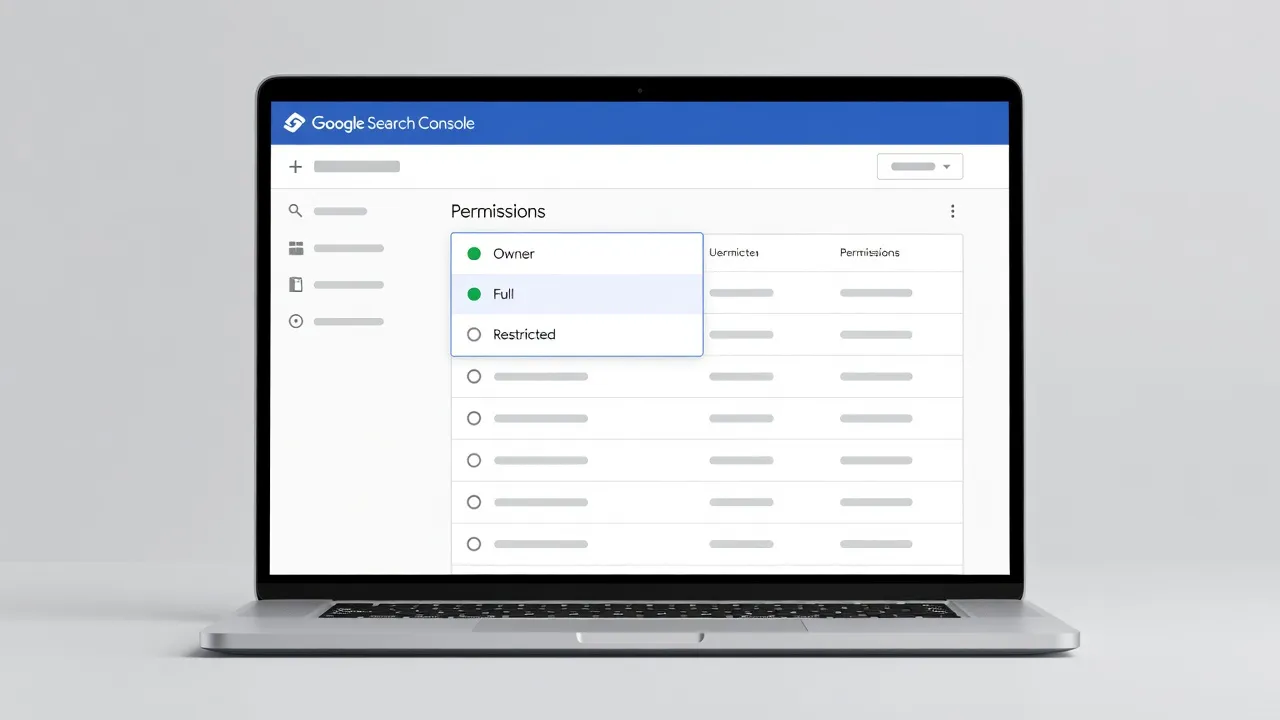
Step 1: Open Google Search Console and Select Your Property
Log in to your Google Search Console account and click the property dropdown menu in the upper-left corner to pick the domain you want to share. You must select the specific site property before opening the administrative settings.
If your organization manages multiple subdomains or protocol variations, ensure you select the master Domain property rather than a single URL-prefix version. Selecting the top-level Domain property grants the user access to data across all subdomains and protocol paths.
If you have not added your website to Search Console yet, complete the verification process first. Platform-specific setup guides, such as our walkthrough on Google Search Console for Shopify or our step-by-step guide to Google Search Console for Squarespace, can help you verify your site.
Step 2: Navigate to Settings and Open Users and Permissions
Scroll to the bottom of the left-hand navigation bar and click on the Settings link marked with a gear icon. This opens the administration panel for the current property.
Inside the Settings page, locate the Property settings header near the top of the main screen. Click on the row labeled Users and permissions to display the list of active users, their roles, and their verification methods.
If the Users and permissions row appears grayed out or lacks an Add user button on the next screen, your account holds Restricted or Full user privileges instead of Owner status. You must ask a current Verified Owner to elevate your role before you can add new team members.
Step 3: Enter the New User's Google Account Email
Click the blue Add User button in the top-right corner of the Users and permissions screen to open the invitation modal. A popup window will prompt you to type the email address of the person you want to invite.
Type the complete email address into the Email address input field. The email address must be attached to an active Google Account, such as a company Google Workspace address or a standard personal Gmail address.
If you attempt to add an email address that is not linked to a Google system, Search Console will display an invalid account error. Ask the user to link their custom business email to a Google account before re-sending the invitation.
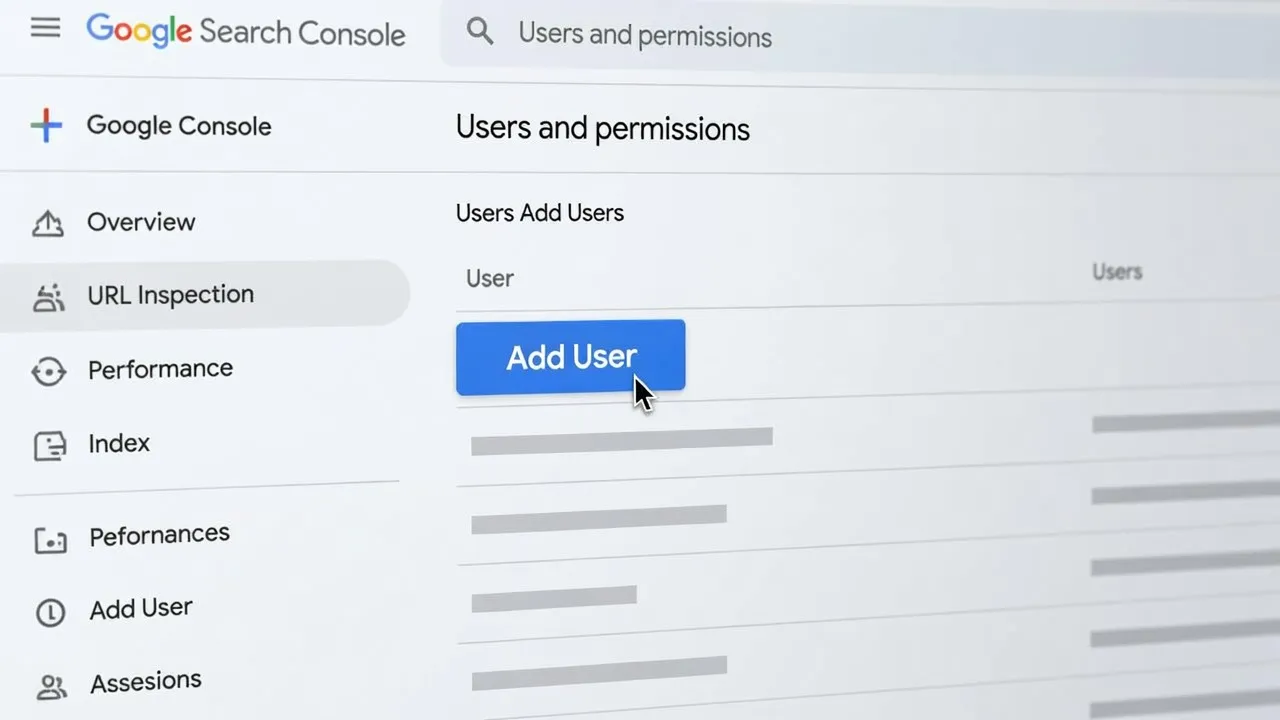
Step 4: Choose the Correct Permission Level and Save
Click the Permission dropdown menu, select Full, Restricted, or Owner based on the user's responsibilities, and click Add to apply the changes. Search Console grants access right away without requiring the user to accept an email invite link.
Once you click Add, the new user's email appears in your property's permissions list. They can access the property immediately by opening their own Search Console dashboard and selecting the site from their property menu.
Review your active user list every few months to remove former employees, inactive agencies, or outdated contractor accounts. Routine audits prevent unauthorized access to your private search data and indexation controls.
Simplifying Multi-Platform Search Reporting with PulseRank
Managing individual permissions inside Search Console works well for single sites, but agency managers and growth leads often struggle to monitor client performance across multiple accounts. Moving between separate Search Console profiles to check ranking fluctuations and indexing status takes valuable time away from execution.
PulseRank solves this fragmentation by centralizing keyword research, content generation, publishing, and Google Search Console performance reporting into a single dashboard. Instead of piecing together separate rank trackers and content tools, PulseRank runs your whole organic strategy in one place for a flat $499 per month fee.
| Step | Component |
|---|---|
| 1 | Keyword Research |
| 2 | Content Strategy |
| 3 | Auto-Publish |
| 4 | Built-in GSC Performance Reporting |
| 5 | AI Citation Analytics |
Auto-Publish feeds into Built-in GSC Performance Reporting. Built-in GSC Performance Reporting feeds into AI Citation Analytics. AI Citation Analytics feeds back to Keyword Research, forming a cycle.
With PulseRank, you get automatic 30-day content strategies, daily citation-ready article creation, direct publishing to WordPress or Shopify, and built-in Search Console metrics. This setup lets teams track actual search performance alongside generative engine visibility without toggling between disconnected platform permissions.
If you want to streamline your search monitoring while executing consistent content publishing, explore how PulseRank automates organic growth workflows.
How do you remove a user or owner from Google Search Console?
To remove a user or delegated owner, return to Settings > Users and permissions, click the three-dot menu next to their email, and select Remove access. The platform revokes their account access immediately upon confirmation.
Removing a Verified Owner requires an additional step because their account remains linked to an active verification token on your server or DNS record. If you simply revoke their owner status in the UI without deleting their HTML file, meta tag, or DNS record, Search Console will automatically re-verify them the next time Google crawls the site.
To permanently remove a Verified Owner:
- Delete the user's HTML verification file from your web server or remove their DNS TXT record from your domain registrar.
- Remove their meta tag verification code from your website header.
- Open Search Console Settings > Users and permissions.
- Click the three dots next to the user's account name and click Unverify.
If you need help resolving indexation issues left behind by previous site managers, review our troubleshooting guide on how to fix 404 errors in Google Search Console.
Common Mistakes When Adding Search Console Users
Adding users seems simple, but business owners frequently make administrative errors that compromise security or grant incomplete access. Avoiding these common mistakes protects your domain records and analytics accuracy.
- Granting Owner Access to Third-Party Agencies: Giving contractors full ownership allows them to add other users or unverify your own access. Use Full or Restricted permissions for external teams unless they are managing your DNS records.
- Using Non-Google Emails: Entering a corporate email address that is not registered as a Google Account causes invitation failures. Confirm account status with your contractor before attempting access setup.
- Forgetting Subdomain Coverage: Adding a user to a URL-prefix property (
https://example.com) prevents them from viewing performance data on subdomains (https://blog.example.com). Grant access at the master Domain property level whenever possible. - Leaving Unused Accounts Active: Former employees and past vendors retain full access to your historical traffic metrics until manually removed. Conduct quarterly user access reviews to revoke outdated credentials.
Setting strict user boundaries prevents security breaches while allowing your SEO team to diagnose indexing problems effectively.
Frequently Asked Questions
Can I add a user to Google Search Console without giving them access to Google Analytics?
Yes, Google Search Console and Google Analytics manage permissions independently on separate platforms. Adding a user to Search Console does not grant them access to your Google Analytics dashboard unless you add them there separately.
Why does Google Search Console say my user's email address is invalid?
Search Console requires every invited user to sign in with a registered Google Account or Google Workspace email. If you enter a third-party business email that is not tied to a Google account, the platform rejects the entry until the owner links it to Google services.
How many users can I add to a single Google Search Console property?
Google Search Console allows you to add up to 100 users or delegated owners per property. If you reach this limit, you must remove inactive users before adding new accounts.
What is the difference between a Full User and a Restricted User in Search Console?
A Full User can view all report data, submit sitemaps, and request page indexing using the URL inspection tool. A Restricted User has read-only access to performance charts and indexation statistics without the ability to submit new data or sitemaps to Google.
Does adding a user to Search Console send them an email notification?
No, Google Search Console does not send an automatic email notification when you add a standard user. You must notify the user directly and share the property URL so they can access the account from their dashboard.
How do I remove a Verified Owner who no longer works with my company?
You must first remove their verification token, such as their HTML file, meta tag, or DNS TXT record, from your site hosting account. Once the token is removed, navigate to Users and permissions in Search Console, click the three-dot menu next to their email, and select Unverify.
Can a Full User delete my Google Search Console property?
No, Full Users cannot delete properties, alter ownership settings, or manage user access permissions. Only Verified Owners and Delegated Owners have authority to manage property settings or remove properties from the console.