

You can fix 404 errors in Google Search Console by auditing broken URLs, setting up 301 redirects for valuable pages, and serving 410 headers for permanently removed content across six structured steps taking about two hours. The most common mistake business owners make is assuming every 404 error requires a redirect. Indiscriminately redirecting dead links to your homepage wastes crawl budget, creates "Soft 404" warnings, and obscures actual site health issues.
Fixing these errors requires distinguishing between dead pages that hurt your performance and natural 404s that you can safely ignore. According to Google's official Search Console documentation, 404 errors are a standard part of how the web operates, and Google does not penalize sites simply for having missing pages. However, when a high-authority page disappears without a destination, your site loses external link equity and frustrates visitors.
Should you fix 404 errors or ignore them?
You should only fix 404 errors if the broken URL receives external backlinks, carries historical search traffic, or breaks a primary internal navigation link. If a deleted page had no incoming links, no search impressions, and no replacement product, leaving it as a 404 is technically correct and safe.
The primary cost of mishandling 404s comes from blanket redirects. When site owners redirect hundreds of unrelated dead URLs to their home page, search engines flag those destinations as Soft 404s because the landing page content does not match the original request.
I always evaluate 404 errors using three core criteria before spending time on fixes:
- External link equity: Does the broken URL have backlinks from external domains?
- User intent: Was this a high-traffic landing page or an active product URL?
- Source of discovery: Is the dead URL listed inside your active XML sitemap?
If the answer to all three questions is no, you can safely ignore the error. Search engines will gradually reduce the crawl frequency for those URLs and drop them from the index.
How should you handle 'Soft 404' errors in Google Search Console?
You handle Soft 404 errors by either returning a true 404/410 HTTP response code or updating the page with complete, unique content so search engines recognize it as valid. A Soft 404 occurs when a server returns a 200 Success status code for a page that Google considers empty, thin, or missing.
Common triggers for Soft 404 warnings in 2026 include blank search result pages, out-of-stock product pages with no descriptive text, and aggressive site-wide redirects to unrelated landing pages.
To resolve a Soft 404 warning:
- Verify the server response: Ensure your web server yields a proper HTTP 404 or 410 status code when a URL does not exist, rather than serving a custom "not found" layout under a 200 OK header. You can check raw server headers using the W3C HTTP Status Code Definitions reference guide.
- Expand thin content: If the page is meant to exist, add unique text, structured data, and updated product details to give search bots enough context to index it.
- Remove incorrect redirects: Undo 301 redirects that point dead blog posts or products to generic category pages or the homepage.
What does John Mueller say about handling 404 errors?
Google Senior Search Analyst John Mueller consistently states that standard 404 errors do not harm a website's overall organic rank and are a natural side effect of changing web content. In numerous Google Search Central office hours, Mueller has explained that search algorithms expect pages to drop off the web over time.
According to advice published on the Google Search Central Blog, Google does not pass negative site-wide ranking penalties based on the presence of 404s. The search engine simply stops showing the broken URL in search results once it confirms the page is gone.
The risk comes when missing pages cause broken user experiences or waste crawl resources on massive sites. If your site generates thousands of new bad URLs daily due to database misconfigurations, Googlebot spends time fetching dead links instead of discovering your newest content.
Should you use a 301 redirect, 410, or canonical tag instead of 404?
You should use a 301 redirect when a direct replacement page exists, a 410 status code when content is permanently deleted with no equivalent, and never use a canonical tag to solve a broken page error. Canonical tags are designed for duplicate content that resolves with a 200 OK header, not missing pages.
Choosing the right response code prevents indexation delays and signals your exact intent to search engine bots:
- 301 Permanent Redirect: Use this when a page moves to a new URL or when a product updates to a newer model. It passes the majority of backlink authority to the new target.
- 410 Gone: Use this when you intentionally delete content and have no relevant alternative. The 410 header tells Googlebot the removal was deliberate, leading to faster de-indexation than a standard 404.
- 404 Not Found: Use this when a URL was published by accident, misspelled by an external site, or removed temporarily.
The 404 Fix Workflow at a Glance
This quick-reference table outlines the time commitment and required tools for each phase of the remediation process.
| Step Number | Action Step | Estimated Time | Primary Tool Required |
|---|---|---|---|
| Step 1 | Export & categorize Search Console 404 URLs | 15 Minutes | Google Search Console |
| Step 2 | Audit external backlinks & traffic metrics | 20 Minutes | Ahrefs, Semrush, or GSC Data |
| Step 3 | Implement 301 redirects for valuable URLs | 30 Minutes | Server .htaccess / CMS Plugin |
| Step 4 | Configure 410 headers for deleted pages | 15 Minutes | Web Server Config / Security Plugin |
| Step 5 | Clean internal links & XML sitemap files | 20 Minutes | Screaming Frog / CMS Sitemap |
| Step 6 | Validate fixes & track crawl status | 10 Minutes | Google Search Console Inspection Tool |
Step 1: Export and categorize your 404 URLs from Google Search Console
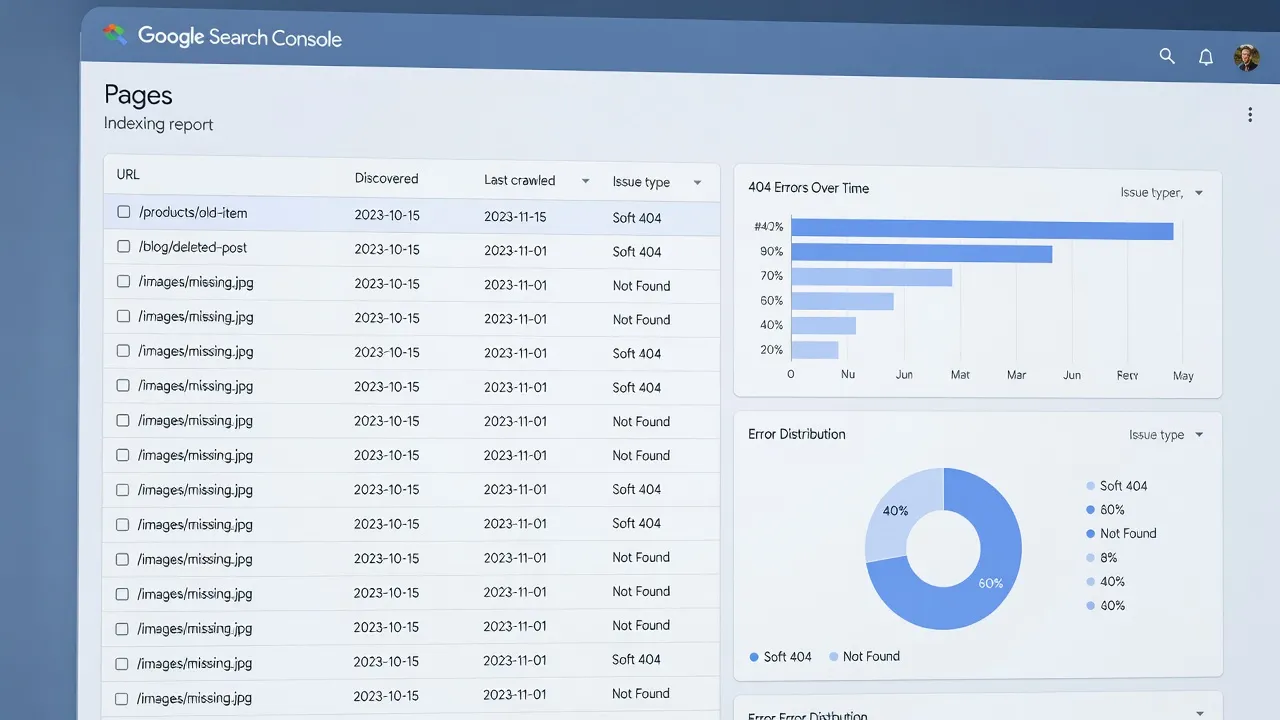
Start by downloading your complete Not Found error list directly from the Pages report inside Google Search Console. Navigate to Indexing > Pages, scroll down to the "Why pages aren't indexed" table, and select Not found (404).
Click the Export button in the top right corner to download the full URL list into a spreadsheet. Once downloaded, separate your URLs into three distinct buckets:
- System and plugin noise: URLs containing query parameters,
/wp-includes/, or weird URL syntax generated by broken scripts. - Intentional deletions: Old blog posts, discontinued product lines, or legacy services you purposefully removed.
- High-value losses: URLs that were main landing pages, active services, or major content pillars before a recent site migration or URL structure update.
Step 2: Audit external backlinks and historical traffic for each missing page
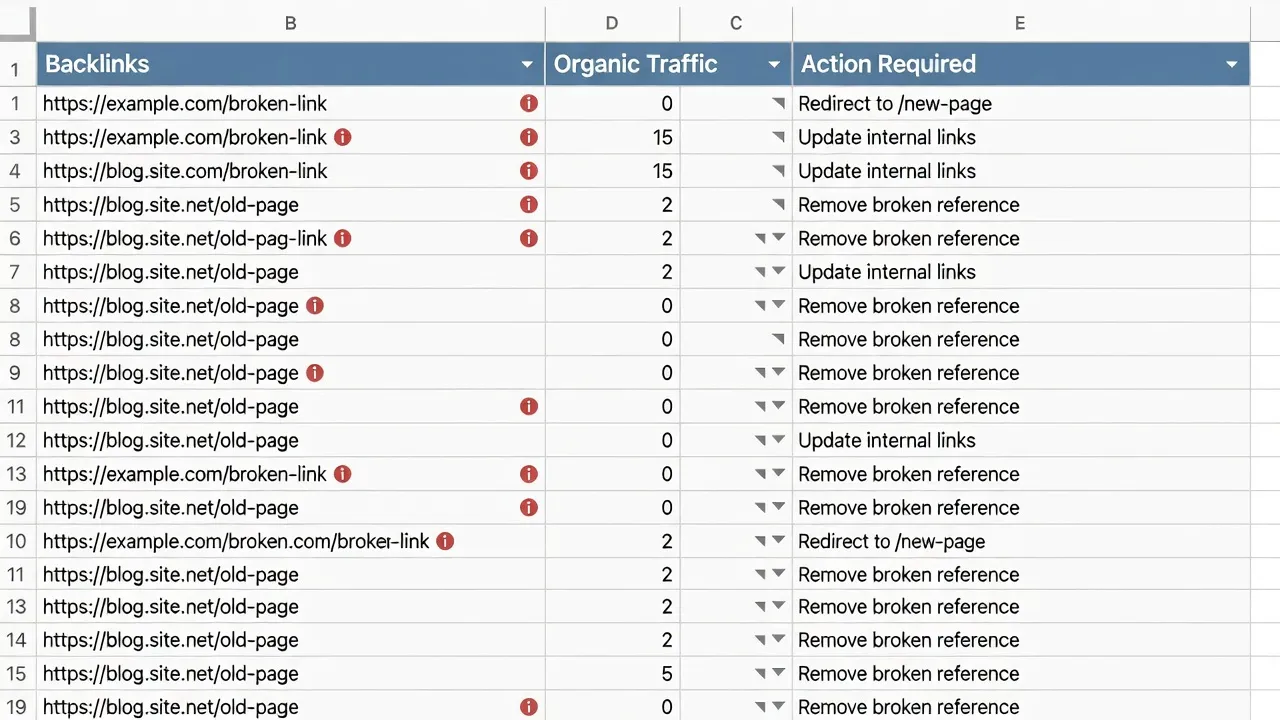
Before setting up any fixes, run your exported 404 URLs through an backlink checker or your site analytics to see if they hold external link authority. Redirecting a page that has zero backlinks and zero historical visitors gives you no SEO benefit while cluttering your server's redirect rules.
Check for incoming links using tools like Ahrefs, Semrush, or your Search Console Links report. If you are comparing performance trends or looking at how missing content impacts overall indexing, platforms like PulseRank give you a unified view of your Search Console metrics alongside automated content tracking.
If a broken URL shows high-tier editorial backlinks or historical search traffic, mark it as a high priority for a 301 redirect in Step 3. If the URL has no links and received no clicks over the past 12 months, mark it for a 410 header or leave it as a natural 404.
Step 3: Implement 301 redirects for high-value pages
Set up 301 permanent redirects for every broken URL that has incoming backlinks or an equivalent replacement page on your current site. The target URL must be topically relevant to the original dead link.
For example, if your business discontinued a "2024 Accounting Guide," redirect that URL to your "2026 Accounting Guide" or your primary accounting resources category. Do not redirect it to your contact page or homepage.
Depending on your content management system, you can implement 301 redirects through several methods:
- WordPress: Use a trusted redirection plugin or edit your server's
.htaccessfile directly. - Shopify: Navigate to Sales Channels > Online Store > Navigation > URL Redirects to add entry paths.
- Nginx/Apache Servers: Add explicit
Redirect 301 /old-page/ https://example.com/new-page/directives to your server configuration block.
# Example Apache .htaccess 301 Redirect Rule
Redirect 301 /old-product-line/ https://www.example.com/new-product-line/
Step 4: Serve an explicit 410 Gone header for intentionally deleted pages
Configure your server to return a 410 Gone status code for URLs that you deliberately removed without adding a replacement. A 410 status code informs search engine crawlers that the resource has been removed permanently and will not return.
While Googlebot eventually stops crawling standard 404 pages, it processes 410 responses faster. This preserves your crawl budget for your active revenue-generating pages.
You can set up 410 response headers directly via your server configuration or through specialized SEO plugins. In Apache, add a simple directive like this to your configuration file:
# Example Apache .htaccess 410 Gone Rule
RedirectGone 410 /obsolete-press-release/
Step 5: Fix broken internal links and update your XML sitemap
Update your website's internal link structure and XML sitemaps to ensure no active pages point visitors or search crawlers to a 404 URL. Search engines often discover 404 errors because your own website navigation, footer, or body copy still links to the dead URL.
Run a site audit using a crawler like Screaming Frog or your platform's built-in health check to identify every internal link returning a non-200 HTTP code. Update those inline hyperlinks so they point directly to the new 301 destination or remove the link entirely if the page was deleted.
Next, open your live XML sitemap (usually located at example.com/sitemap.xml) and confirm it contains only live, indexable 200 OK URLs. If your sitemap feeds dead URLs to Search Console, Google will continually report indexing warnings. Understanding site structure issues is a key part of choosing between technical options, similar to evaluating google search console vs google analytics for tracking user behavior.

Step 6: Validate fixes in Search Console and monitor crawl status
After applying your redirects and server header changes, return to Google Search Console to initiate the validation process. Open the Not found (404) detail page and click the Validate Fix button.
Google will queue a sample of the reported URLs for re-crawling. Validation usually takes anywhere from a few days to two weeks depending on your site's overall crawl frequency.
During this validation window, monitor your server logs or performance dashboards to confirm that crawlers receive your 301 and 410 signals. Keeping your published pages healthy and aligned with search intent is straightforward when your publishing workflow is streamlined. Platforms like PulseRank handle full content operations—from automated keyword strategy to publishing structured, citation-ready articles—while giving you a clear view of how your pages perform inside Google Search Console without requiring manual daily audits.
Automating Search Console Monitoring and Content Health
Managing technical errors manually across large sites easily leads to missed revenue opportunities when critical landing pages drop out of Google's index. While resolving historical 404s cleans up your indexation footprint, maintaining long-term search performance requires consistent content updates and active tracking.
If you run an agency or manage growing websites, keeping up with crawling errors, content gaps, and search engine changes takes hours every week. Integrating your technical fixes with automated workflows keeps your site authoritative without taking up your entire schedule.
Using automated platforms like PulseRank allows you to manage content creation, internal linking schedules, and Search Console performance reporting from a single interface. At a flat rate of $499 per month, it handles keyword research, content production, direct CMS publishing, and indexing visibility checks so your team can focus on core business operations.
Frequently Asked Questions
Does fixing 404 errors immediately improve my organic traffic?
Fixing 404 errors improves traffic only if the broken URLs had existing external backlinks or active search traffic before they broke. Restoring those pages or redirecting them to relevant content reclaims lost link equity and restores rankings.
How long does it take Google Search Console to clear fixed 404 errors?
Search Console takes anywhere from three days to several weeks to clear fixed 404 errors after you click Validate Fix. The timeframe depends entirely on Googlebot's crawl budget and re-crawl frequency for your site.
What is the difference between a 404 and a Soft 404 error?
A standard 404 error returns a true server header stating the page does not exist. A Soft 404 occurs when a server delivers an empty page or generic notice under a 200 OK success status code, confusing search engine crawlers.
Should I redirect all 404 errors to my homepage?
No, you should never redirect all 404 errors to your homepage. Doing so creates Soft 404 warnings in Search Console because your homepage content does not match the specific query or context of the original deleted page.
Can old, fixed 404 errors reappear in Search Console reports?
Yes, old 404 errors can reappear if an external site continues linking to the dead URL or if an uncleaned internal link or sitemap file points crawlers back to the missing page.
Is a 410 header better than a 404 for deleted product pages?
A 410 header is better than a 404 if a product is permanently discontinued with no modern replacement. A 410 signals to Googlebot that the page was intentionally removed, leading to faster de-indexation.
Why does Search Console report 404 errors for URLs I never created?
Search Console reports 404s for unknown URLs when third-party sites misspell links to your domain, spambots attempt to scan non-existent directories, or old site structure paths remain in historical web archives.