

You can locate, verify, and submit your Yoast SEO XML sitemap to Google Search Console and Bing in about 15 minutes without touching a line of code. Following the four core steps below ensures search engine crawlers find and index every updated page on your WordPress site without throwing 404 errors or blank XML screens.
Navigating XML sitemaps can feel intimidating if you are managing your own website updates. However, Yoast SEO automates almost the entire process by generating a dynamic sitemap index file that updates every time you publish or revise content.
If you run a business site, maintaining a clean sitemap is the foundation of your search engine visibility. For broader content operations, pairing your sitemap setup with automated content workflow tools like PulseRank ensures that every newly indexed page delivers citation-ready value.
Steps at a Glance: Yoast SEO Sitemap Setup
The table below summarizes the key actions required to set up, test, and submit your XML sitemap.
| Step | Task | Realistic Time | What You Need |
|---|---|---|---|
| 1 | Enable XML Sitemaps in Yoast | 2 minutes | WordPress admin credentials |
| 2 | Locate sitemap_index.xml | 1 minute | Active browser tab |
| 3 | Submit to Google Search Console | 5 minutes | Verified Google Search Console account |
| 4 | Submit to Bing Webmaster Tools | 5 minutes | Verified Bing Webmaster Tools account |
| 5 | Configure exclusions and post types | 3 minutes | Yoast SEO settings access |
Where is the Yoast SEO sitemap located (sitemap_index.xml)?
The Yoast SEO sitemap is located at your root domain ending in /sitemap_index.xml (for example, https://example.com/sitemap_index.xml). Yoast uses a sitemap index file that acts as a folder containing sub-sitemaps for your posts, pages, categories, and custom post types.
To locate this file directly inside your WordPress dashboard:
- Log into your WordPress admin menu.
- Navigate to Yoast SEO on the left menu, then click Settings.
- Expand the Site features menu under the General section.
- Scroll down to the APIs section or XML sitemaps toggle.
- Click View the XML sitemap link to open your live sitemap in a new browser tab.
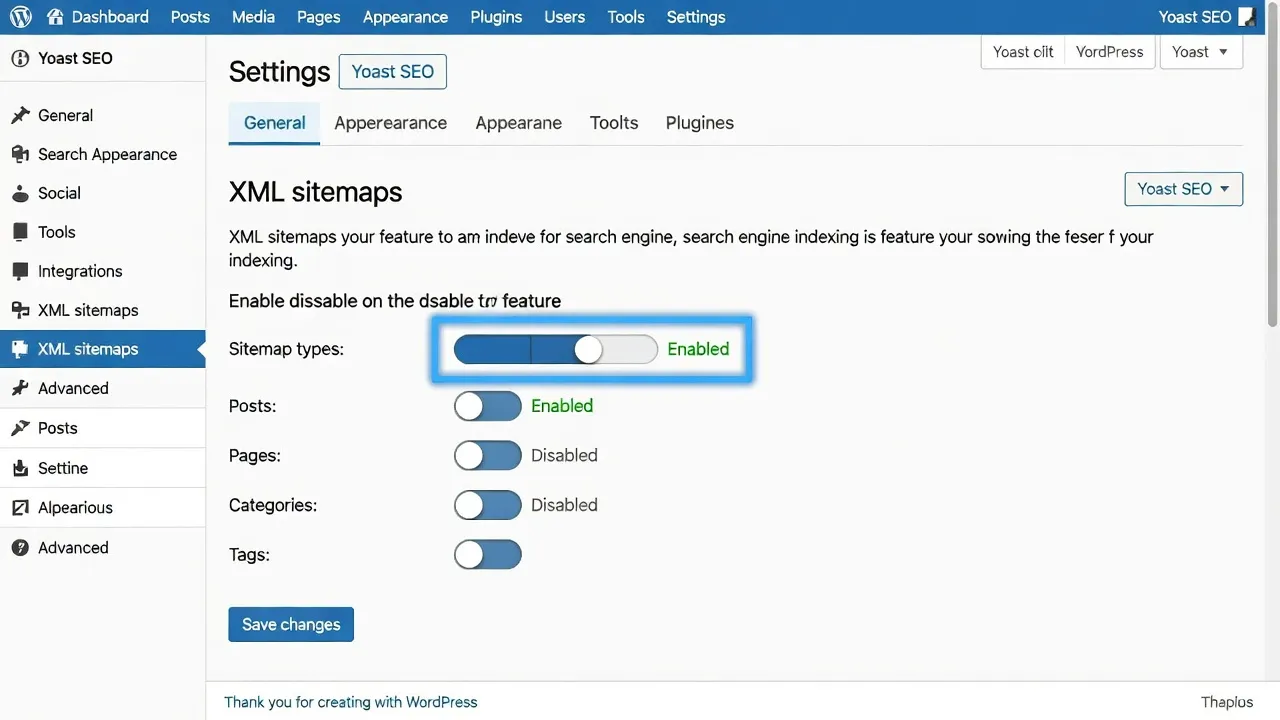
If your site uses custom sub-directories, the main file remains accessible at the root level of your domain. You can verify this by reading Yoast's official sitemap documentation, which confirms that Yoast automatically handles URL rewrites to serve the index file cleanly.
How to submit the Yoast sitemap to Google Search Console?
You submit your Yoast sitemap to Google Search Console by entering sitemap_index.xml into the Sitemaps tool under your verified property. You do not need to submit individual sub-sitemaps (like post-sitemap.xml), because Google reads the index file and processes every child sitemap listed inside it.
Here is the exact procedure to submit your sitemap to Google:
- Open your Google Search Console dashboard.
- Select your website property from the top-left dropdown menu. (If you have not added your team yet, review our guide on adding users to Google Search Console).
- Click Sitemaps under the Indexing section in the left sidebar.
- Locate the Add a new sitemap section at the top of the main panel.
- Type
sitemap_index.xmlinto the text box following your domain name. - Click Submit.
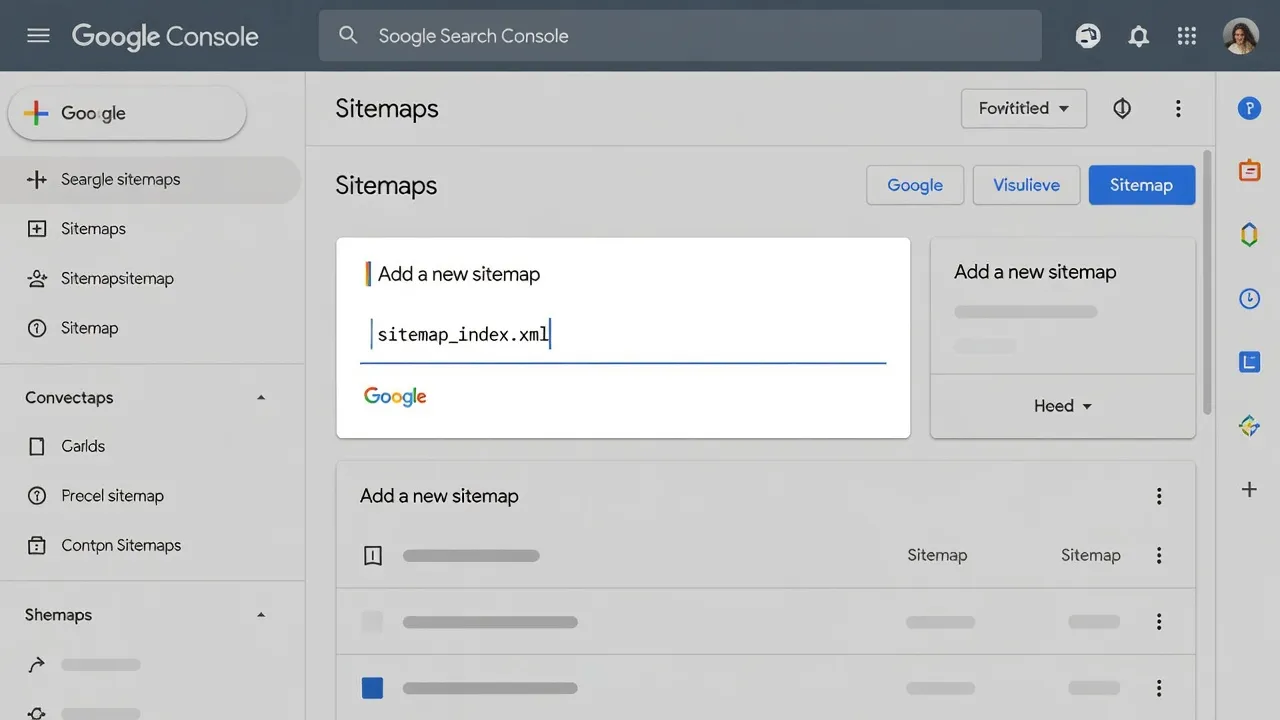
After submitting, the status should initially read Discovered or Success in green text. According to Google Search Console Help, processing times vary based on site size, but Google usually parses the file within a few hours.
How to submit the Yoast sitemap to Bing Webmaster Tools?
You submit your sitemap to Bing Webmaster Tools by pasting your full sitemap URL into the Sitemaps submission menu inside your dashboard. Bing processes XML sitemaps quickly and uses them to feed content directly into Microsoft Copilot and Bing search indexes.
Follow these steps to complete your Bing submission:
- Log in to Bing Webmaster Tools.
- Select your verified site property from the top menu.
- Click Sitemaps in the left navigation panel.
- Click the Submit sitemap button in the top right corner.
- Enter your full URL:
https://yourdomain.com/sitemap_index.xml. - Click Submit.
Bing Webmaster Documentation confirms that importing your site properties directly from Google Search Console into Bing will automatically sync your existing sitemap submissions. Doing this saves time and eliminates manual entry.
How to disable the sitemap setting in Yoast SEO?
You disable the sitemap feature in Yoast SEO by toggling off the "XML sitemaps" switch under Yoast SEO > Settings > Site features. You should only turn off this setting if you are running a dedicated XML sitemap plugin or utilizing specialized server-level sitemap generation tools.
To turn off Yoast sitemaps safely:
- Go to Yoast SEO > Settings in WordPress.
- Select Site features under the General panel.
- Scroll down to XML sitemaps.
- Switch the toggle button from On to Off.
- Click Save changes at the bottom of the screen.
Disabling this setting immediately removes the rewrite rules for sitemap_index.xml. Make sure you have an alternative sitemap active before doing this, or search engine bots may lose track of your newer website links.
Step 1: Enable and access your Yoast XML sitemap
Yoast SEO enables XML sitemaps by default upon installation, requiring zero initial configuration. If you suspect your sitemap is inactive, you can re-verify the setting in less than two minutes inside your WordPress site dashboard.
As of October 2026, Yoast SEO includes unified setting screens that combine basic and advanced toggles into clear categories. Here is how to confirm your sitemap is live:
- Check your site's public URL by visiting
yourdomain.com/sitemap_index.xmlin an incognito window. - If you see an XML table styled with Yoast branding, your sitemap is functioning correctly.
- If you see a standard 404 error page, open your WordPress admin area.
- Navigate to Yoast SEO > Settings > Site features and ensure the XML sitemaps switch is blue (enabled).
- Click Save changes even if the toggle was already active to force WordPress to clear its internal rewrite cache.
If you run specialized plugin additions like our recommended Yoast Local SEO guide options, Yoast automatically appends dedicated geo-sitemaps (such as geo-sitemap.xml) directly into your main index file.
Step 2: Validate your sitemap URLs and remove excluded content
Validating your sitemap requires checking that no draft pages, utility tags, or canonical redirects are getting exposed to search crawlers. Clean sitemaps prevent indexation budget waste by directing Googlebot exclusively to high-value page content.
By default, Yoast SEO includes all public posts, pages, and categories while excluding tags and utility pages. You can customize what appears in your sitemap:
- Open Yoast SEO > Settings.
- Click on Content types under the Content section.
- Select individual categories (such as Posts, Pages, or Projects).
- Toggle Show in search results off for any post type you want excluded from your sitemap.
- Scroll down to Taxonomies and disable indexation for low-value categories or tags.
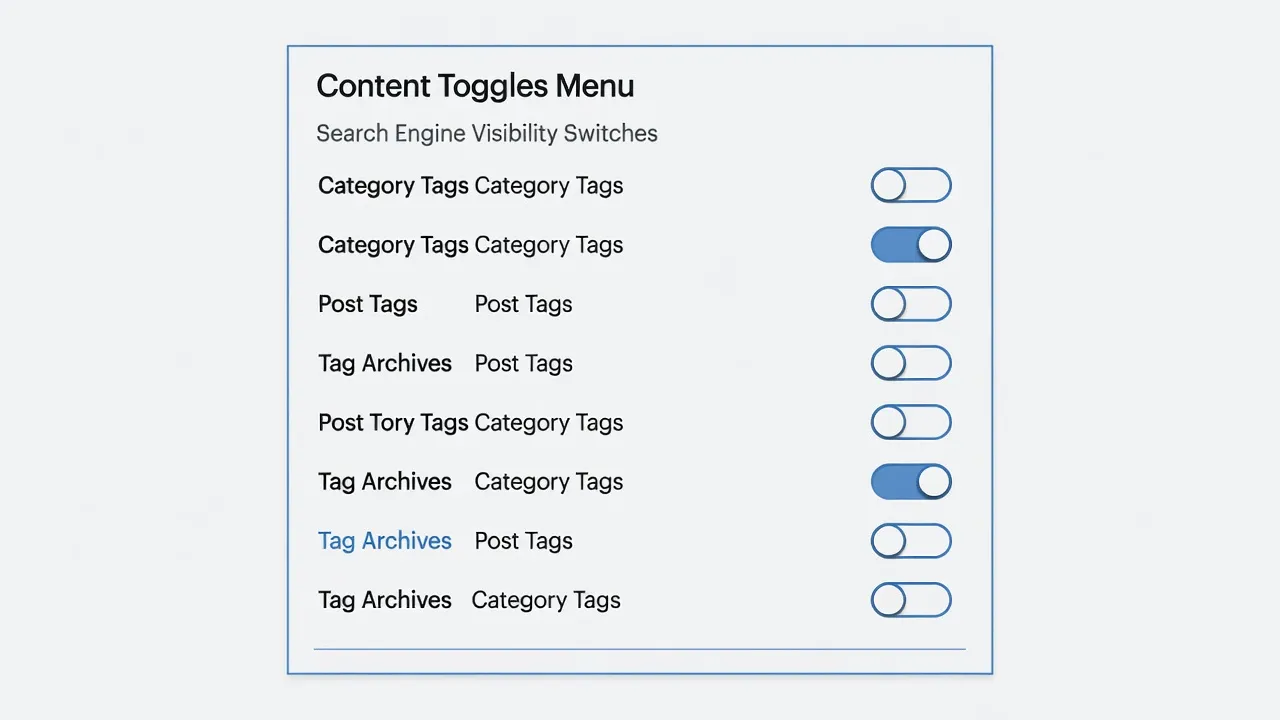
If you set a specific post or page to noindex within the Yoast metabox on an individual item, Yoast automatically strips that specific URL from sitemap_index.xml. This keeps your sitemap aligned with your page-level robots meta tags.
Step 3: Submit sitemap_index.xml to search engines
Submitting your sitemap index URL directly to search engines ensures immediate crawling of fresh content rather than waiting for passive discovery. Both Google and Bing rely heavily on sitemap pings to schedule crawler resources efficiently.
When you launch a new site or complete a site redesign, manually submitting the main index file accelerates indexing. Follow the checklist below during initial setup:
- Copy your live sitemap index URL (
https://yourdomain.com/sitemap_index.xml). - Paste the URL path into Google Search Console's Sitemaps module.
- Confirm that the status updates to Success.
- Paste the full URL into Bing Webmaster Tools under Sitemaps.
- Check back after 24 hours to review the total count of discovered URLs.
If you manage extensive enterprise sites or offer specialized WordPress SEO services, monitor these sitemap reports weekly. Dropped URL counts often indicate indexing blocks or accidental noindex tags across child pages.
Step 4: Fix common Yoast sitemap errors (404, blank pages, and caching issues)
Most Yoast sitemap errors stem from corrupted WordPress permalinks, aggressive caching plugins, or server memory limitations. Resolving these issues takes only a few minutes once you identify the underlying bottleneck.
Here is how to resolve the three most common Yoast sitemap issues:
Fixing 404 Not Found Errors
If visiting sitemap_index.xml yields a 404 page, your WordPress permalink structure is likely out of sync.
- Go to Settings > Permalinks in your WordPress dashboard.
- Scroll to the bottom of the page without changing any fields.
- Click Save Changes to flush your site's rewrite rules.
Fixing Blank Pages or XML Parsing Errors
A completely blank screen or an XML parsing error indicates a PHP conflict or white space added by another plugin.
- Disable caching for sitemap URLs in plugins like WP Rocket or W3 Total Cache by adding
sitemap(_index)?\.xmlto your cache exclusion rules. - Increase your WordPress PHP memory limit to at least 256MB in your
wp-config.phpfile. - Check your
theme functions.phpfile for accidental blank lines outside of opening or closing<?php ?>tags.
Fixing Missing Updated Dates
If your sitemap displays blank dates under the Last Modified column, check if a security plugin is stripping header timestamps. Resetting your Yoast SEO plugin settings often restores these timestamps automatically.
Streamlining post-sitemap content and indexation with PulseRank
Submitting your Yoast sitemap ensures search engine crawlers know your site exists, but consistent ranking growth requires publishing high-quality, citation-ready content every day. A clean sitemap tells crawlers where to look; your publishing velocity determines how often they return.
Managing keyword research, writing articles, creating custom images, and tracking search rankings manually often overwhelms small teams. This is where PulseRank automates your entire organic search workflow.
PulseRank is an all-in-one SEO and generative engine optimization (GEO) platform designed to run your organic content growth automatically. Instead of juggling separate software subscriptions, PulseRank provides:
- Automated Keyword & Content Strategy: Identifies your core keyword pool and maps out a full 30-day content calendar tailored to real user intent.
- Daily Article Generation & Publishing: Writes clear, thoroughly researched articles complete with structured data tables, third-party link citations, generated images, and built-in alt text.
- Direct Site Integration: Publishes articles straight to your WordPress, Shopify, Wix, or Git platform every single day.
- Integrated Performance Reporting: Connects directly with Google Search Console reporting to show keyword movements alongside generative AI engine citation tracking.
For $499 per month, PulseRank provides a single flat plan with everything included—eliminating credit metering, per-user upgrades, or complex pricing tiers. If you run multiple websites, each additional brand is billed as a separate $499 per month subscription with full platform access. You can test the platform with a 7-day free trial.
Once your Yoast SEO sitemap is live and verified in search consoles, using an end-to-end engine like PulseRank ensures your sitemap remains constantly updated with fresh, search-optimized pages.
Frequently Asked Questions
Does Yoast SEO update XML sitemaps automatically?
Yes, Yoast SEO updates your XML sitemap automatically whenever you publish, edit, or delete posts or pages. You do not need to regenerate the sitemap manually or re-submit it to Google Search Console after publishing new content.
What is the difference between sitemap.xml and sitemap_index.xml in Yoast?
Yoast SEO uses sitemap_index.xml as a master file that links to multiple smaller sitemaps like post-sitemap.xml and page-sitemap.xml. Standard sitemap.xml files are typically single static lists generated by older plugins or non-WordPress platforms.
Should I submit individual Yoast sub-sitemaps to Google?
No, you only need to submit sitemap_index.xml to Google Search Console. Google reads the index file automatically and extracts every nested sub-sitemap listed inside it.
Why does my Yoast sitemap show a 404 page not found error?
A 404 error on your Yoast sitemap usually means WordPress permalink rewrite rules need to be reset. Navigating to Settings > Permalinks in WordPress and clicking Save Changes fixes the issue in most cases.
Can I exclude specific pages from my Yoast XML sitemap?
Yes, you can exclude individual pages by setting their search engine visibility to noindex inside the Yoast SEO metabox on that post. Alternatively, you can disable entire post types under Yoast SEO > Settings > Content types.
Does Yoast SEO sitemap work with WooCommerce products?
Yes, Yoast SEO automatically detects WooCommerce installations and adds product-sitemap.xml to your master sitemap index. You can adjust product category exclusions directly inside the Yoast settings menu.
Why is Bing not reading my Yoast SEO sitemap?
Bing may fail to read your sitemap if your robots.txt file blocks Bingbot or if server caching is serving stale XML files. Verifying your robots.txt permissions and adding sitemap_index.xml to your caching plugin's exclusion list resolves the block.